
The Best Keyboard Workflow for macOS Power Users in 2026

By 2026, the macOS productivity space has hit an inflection point. We have reached "launcher bloat."
Our once-minimal command bars now come packed with conversational AI bots, cloud-integrated search, complex scripting workflows, and system utilities. They are amazing tools for cold-starting an app or searching deep repositories.
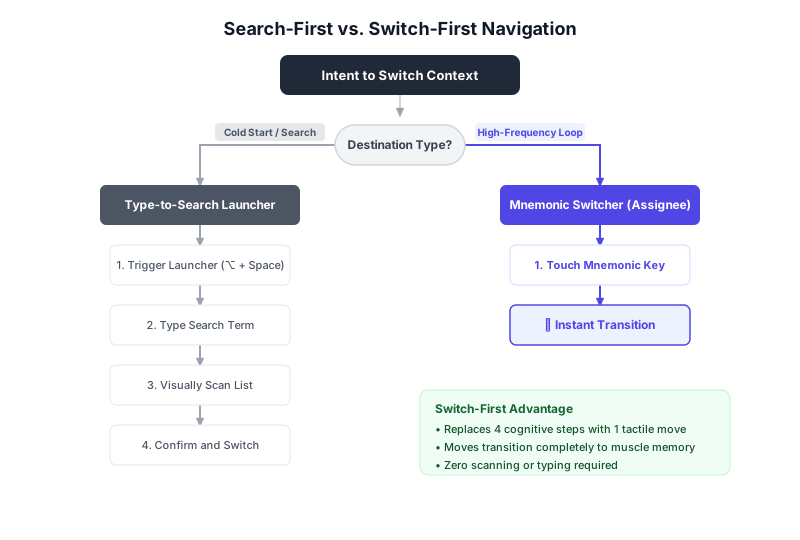
But when it comes to the micro-transitions you perform two hundred times a day—jumping between your editor and your browser, checking Slack, or pulling up notes—relying on a search bar is a slow, cognitive tax. You type, you wait, you visually inspect the list, you confirm, and only then do you switch.
The best keyboard workflow in 2026 shifts the focus from search-first to switch-first. Here is how to design a modern, friction-free keyboard setup that scales with real professional workloads.
The 2026 Reality: Why "Type-to-Search" is a Bottleneck
Most power-user setups rely on a central launcher (like Raycast, Alfred, or Spotlight) mapped to ⌘ + Space or ⌥ + Space.
This is excellent for discovery, but terrible for high-frequency loops. Consider the friction of a search-first switch:
- Trigger: Press
⌥ + Space. - Type: Enter "vs" or "notion".
- Scan: Look at the drop-down list to verify the target is selected (especially when multiple matching windows or files exist).
- Execute: Hit
Enter.
Under heavy workloads, this "Type-Identify-Confirm" loop forces you to break focus. It interrupts your train of thought.
In 2026, the goal is to bypass the search layer entirely for your core 6 to 10 daily applications and projects. We do this by upgrading to a shortcut-layered workflow.
Layering Your Mnemonic Map
A high-signal shortcut map relies on mnemonics (letters that match the names of your tools) arranged in distinct, non-conflicting layers. Rather than mapping complicated global keybinds (like ⌘ + ⌥ + ⇧ + K—which requires hand gymnastics), we use a lightweight local switching layer.
Here is the blueprint for a robust, 2026-ready keyboard map:
1. The Home-Row Anchors (Universal Tools)
Your high-frequency coordination and planning tools should live on or immediately adjacent to the home row (A S D F / J K L ;). These are the anchors you touch regardless of the project you are on.
C→ Calendar (Your guardrails)D→ Documentation / Notes (Notion, Obsidian, or Bear)A→ Communication Hub (Slack, Teams, or Discord)F→ Terminal / Command LineG→ File Browser / Finder
2. The Project-Specific Sub-Maps (Execution Tools)
When you are deep in execution, your brain thinks in projects, not just apps. You don't want to switch to "VS Code"; you want to switch to "Project Alpha's VS Code window."
Using Assignee, you can bind double-tap or sequential hotkeys to switch directly between specific workspace profiles:
S, 1→ VS Code (Frontend Repository)S, 2→ VS Code (Backend Repository)B, 1→ Chrome (Development Sandbox Profile)B, 2→ Chrome (Production Dashboard)
3. The Visual Context Switcher (Stage Manager + Layouts)
Stage Manager has matured significantly on macOS. The ultimate power-user setup combines Stage Manager's visual grouping with direct keyboard triggers:
- Bind
Wto toggle Stage Manager views, instantly bringing up clean, isolated visual environments. - Use window-snapping keyboard layouts under a single family (e.g. using
Hyper + Left/Right Arrow) to organize your primary workspace without touching a mouse.
Avoid the "Hyper-Key" Gymnastics
Many keyboard guides suggest mapping a "Hyper-Key" (mapping Caps Lock to ⌘ + ⌥ + ⇧ + ⌥) to run global shortcuts. While clever, this setup often introduces compatibility issues across apps (especially in complex IDEs like VS Code or Figma) and still requires you to chords multiple keys at once.
Instead, a dedicated direct-switcher like Assignee lets you assign single-key triggers that intercept system-level transitions safely, leaving your standard app shortcuts completely unbothered.
Common Mistakes to Prune from Your Setup
If you are auditing your keyboard workflow for 2026, look out for these common productivity traps:
- The Command-Tab Cycle: If you find yourself holding
⌘and repeatedly pressingTabto cycle through 10 open apps, you are wasting valuable working memory. If it takes more than one step to switch, it's a bottleneck. - Over-Mapping: Do not map shortcuts to utilities you only open twice a week (e.g., system settings, audio switchers, or disk utilities). Let your search launcher handle those. Keep your direct-switching map incredibly lean (under 10 keys).
- Using App Icons to Switch: If your Dock is still visible and you switch apps by clicking icons, you are losing hours of cumulative focus over a single month. Auto-hide the Dock and never look back.
Step-by-Step Transition Guide
Setting up your system shouldn't take a whole weekend. Try this progressive rollout instead:
- Day 1-3: Install Assignee, map just two shortcuts (e.g.,
Afor Slack,Bfor your browser). Force yourself to use them every single time you switch. - Day 4-7: Add your primary execution tool (e.g.,
Sfor VS Code or Figma). Watch how quickly your brain maps the physical transition. - Week 2: Move to window-specific mapping. Separate your frontend and backend windows or client workspaces.
Next steps
- Ready to map your first shortcuts? Follow The Beginner's Guide to Setting Up Your First Shortcuts in Assignee.
- Deep dive into the comparison space with Spotlight vs Raycast vs Assignee: Which Is Fastest? or head-to-head comparison pages like Assignee vs Alfred.
- For pricing and licensing tiers, visit the pricing page.
Bottom line
The best keyboard setup is the one you don't have to think about. By replacing search-first friction with direct tactile switching in 2026, you free up cognitive space for the actual work. Keep it minimal, keep it mnemonic, and keep it fast.


